Editing Existing Event
To edit an existing event, select it from the list of events on the All Events or Upcoming Events page.
The Event Details form is displayed where fields can be edited. Selecting Save Event will save the changes and close the event details form.
Validation will run on the location/room/date/time selection to ensure that the selected room is available. If the selected time overlaps another event, an Informational Message will be displayed.
Blocked Availability and Informational Messages
Blocked Availability and Informational Messages
When an event is scheduled for a specific location, room, date, and time range, that space is blocked from being reservable for another event, thus preventing double bookings. When a location/room/date/time combination is selected that is in conflict with another, the following informational messages will appear.
Logic for Informational Message | Informational Message |
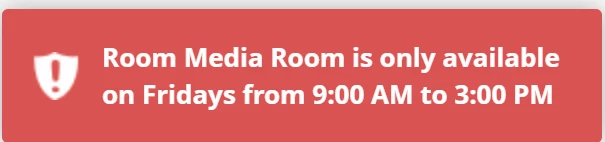
The Room is available on the selected day of the week but the Event is outside of the Room’s available hours. |
|
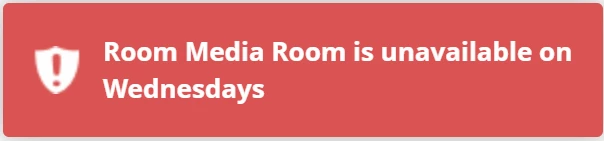
The Room for a reservation is not available for the selected day. |
|
The combination of location/room/date/times overlaps an existing reservation. |

|
The Room for a reservation is not available for the selected day/time due to a conflict with the recurring daily event. | 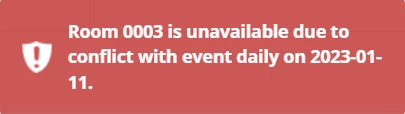
|
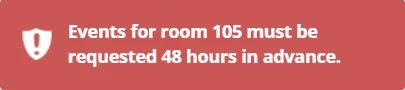
The Room for a reservation cannot be booked at this time due to the set threshold (advance time notice) of 48 hours. |
|
The Admin cannot advance the ticket until an available room, date, and time combination is selected.
After saving new changes, the new value will be reflected in the Event’s Event Details and anywhere else where Event Details appear (such as Tickets).
If the event has already occurred, it will still show in the All Events list, but the fields will not be editable; they will show disabled. Edits can only be made up until the event Start Date/time.
If the Event was created through a calendar integration, the event would be uneditable. There will be a message banner at the top indicating that “This event is managed outside of Incident IQ and is therefore read-only.”
Recurring Event
When editing an event that has a recurrence set up, the user will be able to make changes to only the event selected, the event selected, and all future events, or all events in the recurring series. After clicking Save Event, the user will be prompted to specify if changes should apply to just that event or if changes should propagate to additional events.
When saving a modification to a recurring event, if the day of the week, time of day, and/or recurrence settings are edited, and the changes create a conflict in the availability of the room, then changes will not be saved.
The start date of the modification should reflect the date of the instance that the user selected to begin editing.
When deleting a whole series of events (All Events radio button), passed events in that series will not be deleted. The Admin will need to go into each passed event and delete it manually.
Copy an Event
When editing an event there is a button at the top right, Make A Copy. This allows admins and agents to create future instances of the same event efficiently and accurately without entering all the same information again.
Selecting the Make A Copy button will open a new flyout for the new event to be created with all the details populated by default except the date/time fields. All the details are still editable, and the user can change the name of the event, choose a different day/time, and make other necessary changes.
Canceling an Event
To cancel an event, select it from the list of events on the main Events page. The Event Details for that Event will be displayed. In the Event Status field drop-down, select Canceled.
A pop-up will ask for confirmation that the user wants to cancel this event. If yes is selected, Save Event will change the status of the Event to Canceled.
The event will appear in the All Events list with the status Canceled in red. The Location and Time slots for this canceled event are now available for other reservations.
When canceling an Event, the associated Tickets are NOT canceled (e.g., the Event was created indirectly through an Event Reservations Ticket Request or if there are associated tickets.) It is recommended that CS/Implementation assist districts in configuring rules to cancel the associated tickets when the Event is canceled.
If the event was scheduled to occur in the future and was originally shown in the Upcoming Events list, now that it’s canceled, it will show only in the All Events list as canceled.
When an event is set to Status: Canceled, the Location/Room + Date/Time combo is made available for other reservations.
Event can be reactivated by changing the Event Status from Canceled back to Approved.
Event cannot be reactivated to Approved if Location/Room + Date/Time is no longer available.
If the Event was created through a calendar integration, the event can not be cancelled in iiQ. There will be a message banner at the top indicating that “This event is managed outside of Incident IQ and is therefore read-only.”
Deleting an Event
To delete an existing event, select it from the list of events on the main Events page. The Event Details page for that Event will be displayed. Select Delete in the top right corner.
A pop-up will ask for confirmation that the user wants to delete this event. Once Delete is selected, the event will be deleted and will not appear in any list(s) in iiQ.
When deleting an Event, the associated Tickets are NOT deleted (e.g., the Event was created indirectly through an Event Reservations Ticket Request or if there are associated tickets.) It is recommended that CS/Implementation assist districts in configuring rules to cancel the associated tickets when the Event is deleted.
Bulk Deleting Events
Users viewing Events in a list can select multiple events to delete them in bulk. This can be done in both the Events Views (Upcoming Events, Custom Views, etc.) and the Additional Dates tab of an event within a series.


Please note, to be able to delete events both one at a time and in bulk at a location; the user has to have Manage permissions for that location. For an event that has multiple locations, the user is required to have Manage permissions at all the locations on that particular event to be able to delete that event.

If the user doesn’t have permission to perform this bulk operation, they will get a message in the red box stating this.

Bulk Update Event Details
You can bulk-edit upcoming events. The following fields will be available for bulk editing:
Event Status
Event Description
Event Title
Event Owner
Event Type
Attendees
Organization
Attachments
Custom Fields
Please note that the following fields are not supported with bulk editing:
Date/Time
Location
Attachments
A couple of key callouts for bulk updating events:
To utilize this feature, you must have the permission option Manage Event.
This feature applies only to upcoming events whose start time has yet to pass. If you try to update past events, the update will fail and show the “Failed—Incomplete” message.
If a recurring upcoming event has been selected, the change will apply only to that particular selected recurring event, not the whole series of events.
On the Upcoming Events grid page, select several events that need updating and select Other > Set Info.
In the "Change Information Across Multiple Events" drop-down menu, select a field like "Organization."
Select Add Field.
Select the needed value for the chosen field and select Update Events (X).
Confirm the bulk action by selecting Update Event.
If the update is successful, you will see the “Completed—Successful” message when Performing a bulk operation.
---
Hannah Bailey - Director, Customer Engagement